Google replaced appointment slots with appointment schedules on August 7, 2024, and the new system supports 5-minute minimum durations. If your old booking link still exists, it may keep old appointments intact, but new scheduling should move to the newer setup now.
A lot of California businesses are still living through that awkward middle ground where the old link used to work, staff still remembers the old workflow, and clients just want a time on the calendar. If you manage a salon, clinic, office, or service team, the core question isn't whether Google changed the feature. It's whether your current setup still matches how you book people today.
Why Google Calendar Appointment Slots Changed in 2024
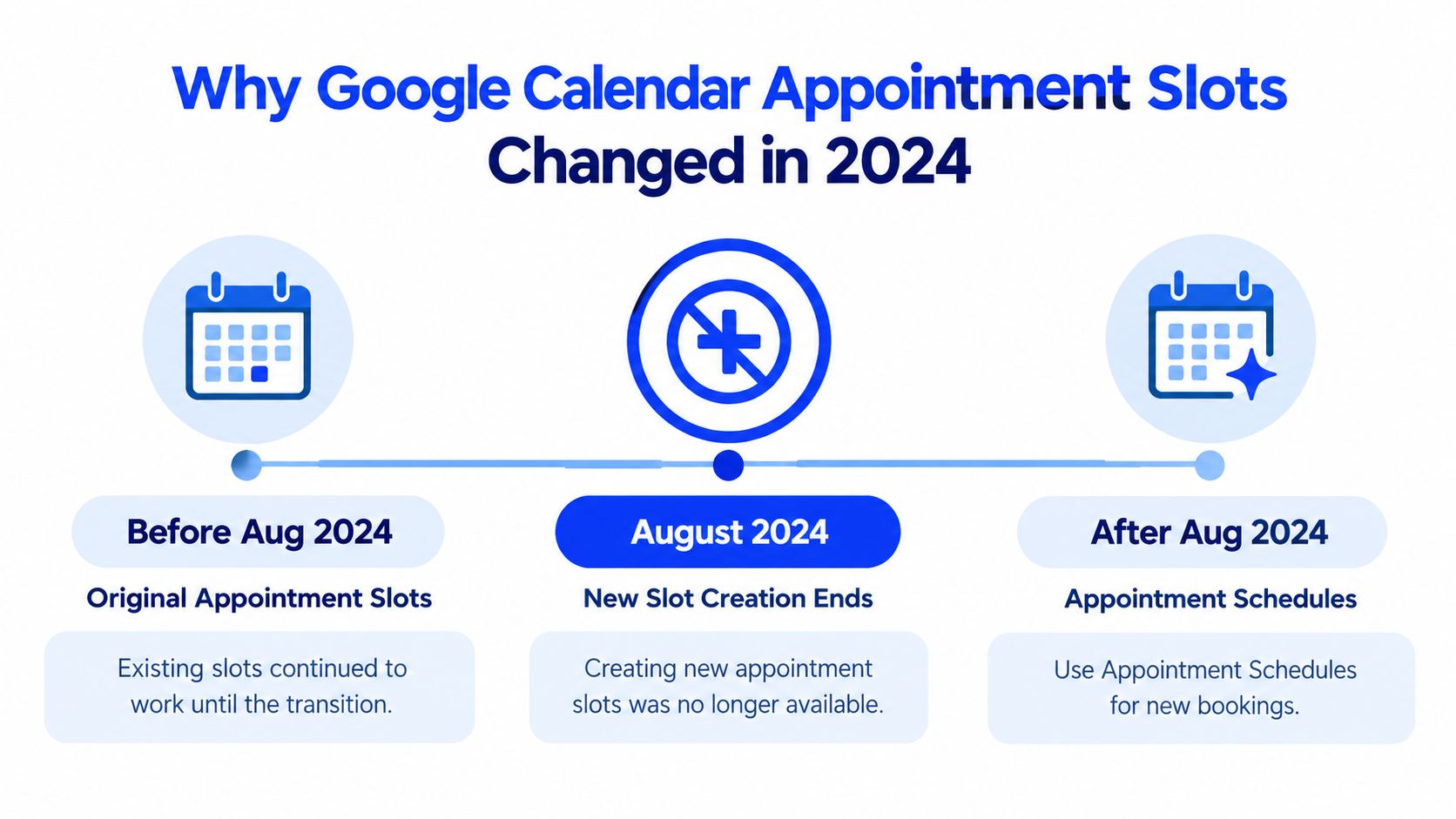
The August 2024 change caught a lot of people off guard because the old link didn't disappear in the middle of a booking, it just stopped being the right system to build around. Google's original appointment slots were designed for internal scheduling, where someone shared available blocks and let people reserve them through a calendar link. That was fine for a simple setup, but it wasn't built for the way clients book services now. Google later moved to appointment scheduling for Google Workspace Individual in June 2021, then widened access in 2022 for several Workspace and nonprofit editions (Google Workspace Updates).
What changed in practice
By the time Google retired the creation of new appointment slots, businesses were already feeling the limits of the old model. Existing booked appointments stayed in place, but anyone trying to use leftover slot links got pushed toward the newer booking flow. Google also expanded the scheduling controls over time, including a 5-minute minimum appointment duration update on October 3, 2023, which made the newer system much better for tightly timed services (Google Calendar Help).
For California operators, that matters because short consults, intake calls, and service add-ons rarely fit neatly into 15-minute chunks anymore. The modern schedule is also better at conflict handling, which is the underlying reason teams should care. If your calendar already has a booked event, the slot should disappear from availability rather than relying on someone to notice it manually (Google Calendar Help).
Practical rule: if your business still depends on old appointment slots, treat the change as a rebuild, not a tweak.
That distinction saves a lot of confusion. The transition wasn't just a name change, it moved Google Calendar from a basic link-sharing tool to a customer-facing booking page with more serious scheduling controls.
Setting Up Your Google Calendar Appointment Schedule Correctly
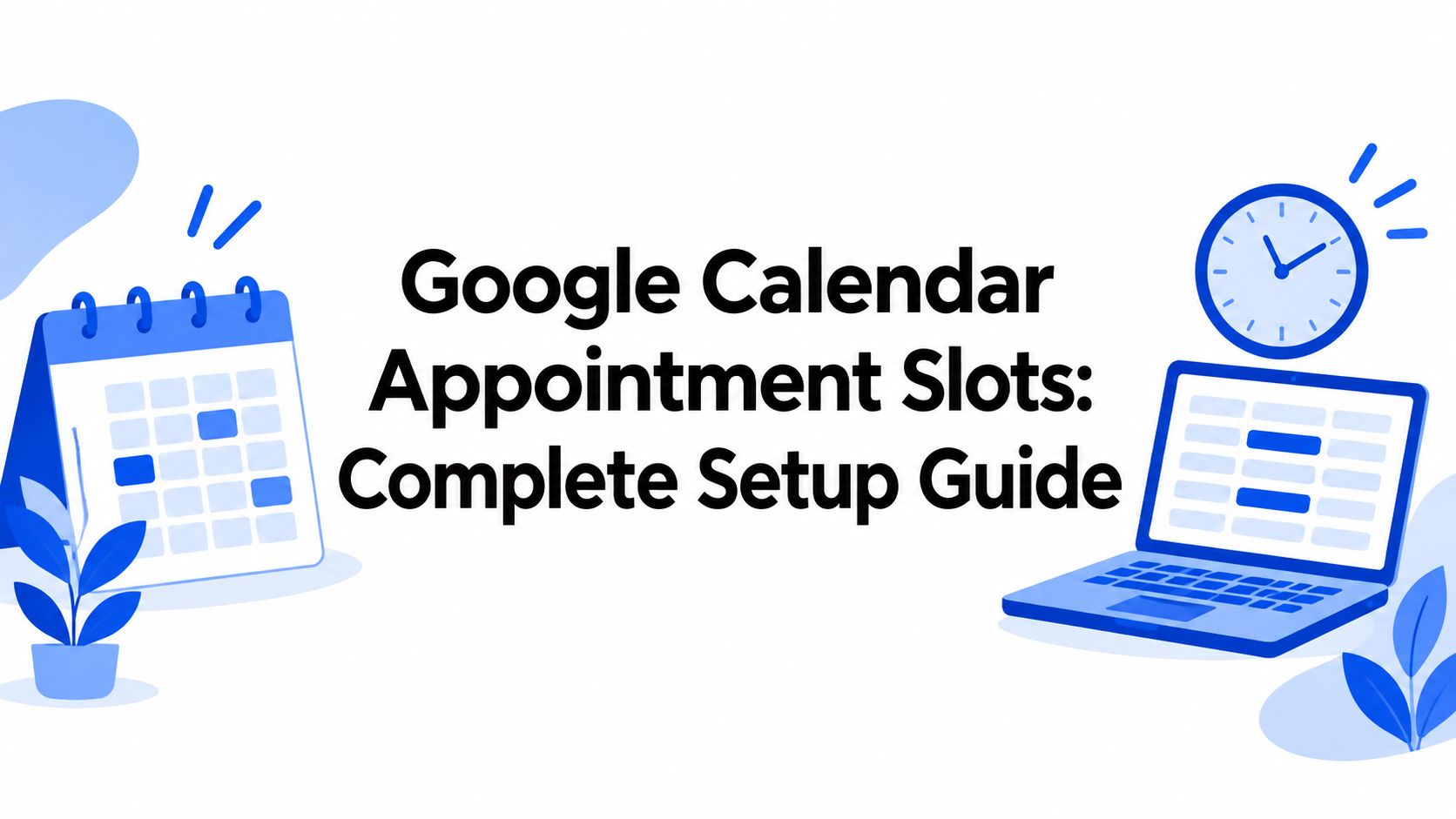
The cleanest setup still starts on a computer. In Google Calendar, choose Create, then Appointment schedule, and build the schedule from there. Set the appointment duration first, then define recurring availability, booking-page settings, meeting method, and time zone so you're not trying to patch gaps later (Google Calendar Help).
Start with time zone and duration
For California businesses, the time zone should be set explicitly to Pacific Time. Don't leave this vague and assume daylight-saving handling will save you, because a mismatch here creates the kind of off-by-one-hour booking mistake that annoys both staff and clients. Once that's set, choose the service length that matches your actual workflow, not the one that sounds neat in a menu.
Google's newer scheduling system supports very short intervals, but precision only helps if the calendar is configured with the same precision. If you run different appointment types, build them separately instead of forcing one schedule to cover everything. That keeps your service windows cleaner and your availability easier to read.
Test the booking flow before clients see it
The most useful reliability check is simple:
- Create a known calendar conflict.
- Confirm that slot disappears from the booking page.
- Book an open slot.
- Verify the booking lands on the calendar with the right duration and time zone.
That test tells you whether the schedule is reading availability, not just whether the page loads. Google documents that bookings are added to the calendar and that conflicting events are blocked from availability (Google Calendar Help).
If a booking page looks right but ignores calendar conflicts, don't publish it yet.
That's especially true for businesses with lunch breaks, rotating shifts, or seasonal hours. Those patterns are normal in California operations, and the schedule has to reflect them before customers start using it.
Understanding Limitations With Multiple Service Providers
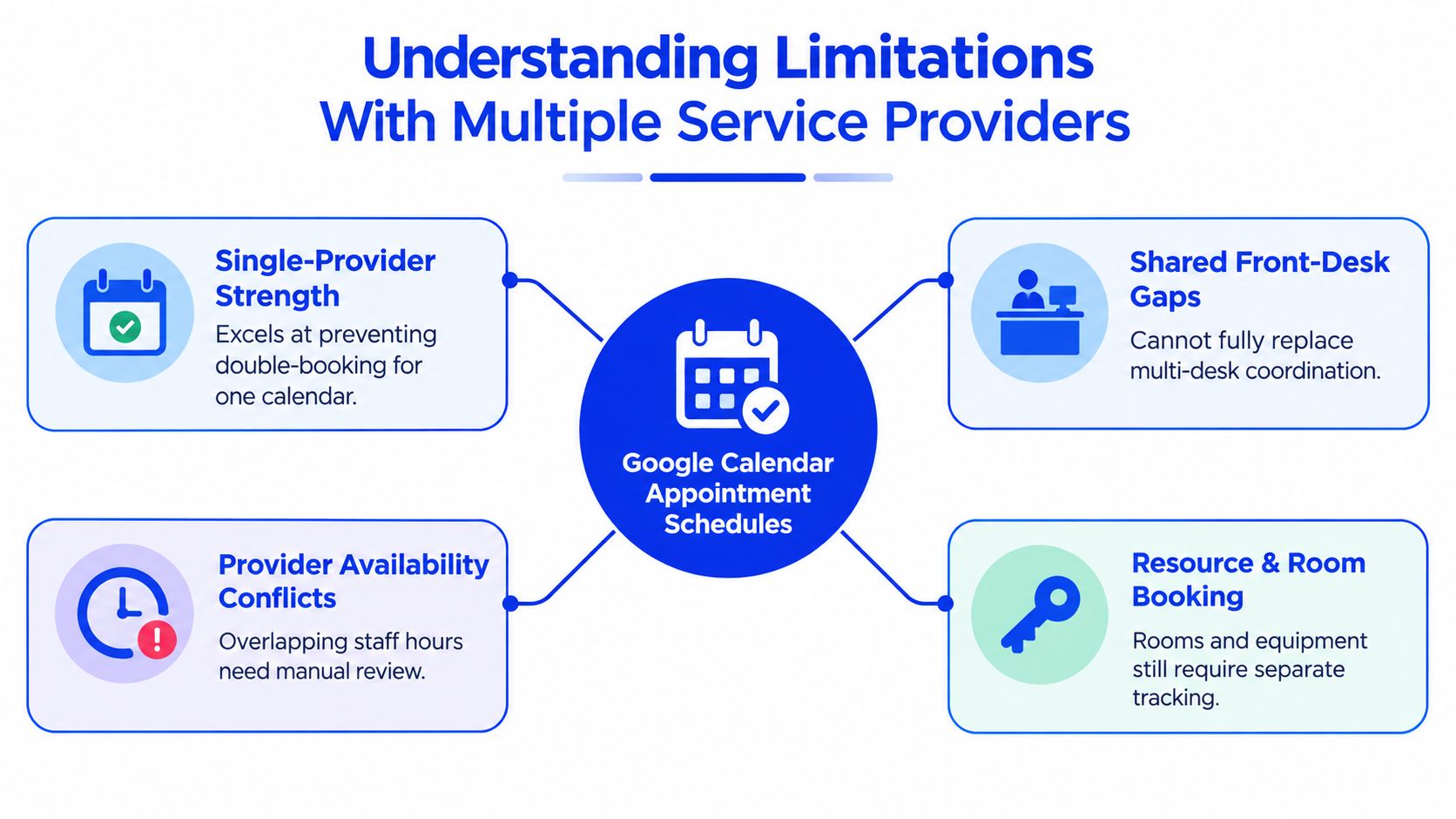
Google Calendar appointment schedules work well when one person owns one booking flow. They break down faster when multiple providers, rooms, or service paths need to be matched correctly. Google can block busy calendar time, but it doesn't automatically route a customer to the right employee, room, or service workflow (Google Calendar Help).
Where the mismatch shows up
A 30-minute appointment is not the same thing across every provider. In a salon, one stylist may need a buffer before colour services, while another handles quick trims. In a dental or medical practice, one chair, one provider, and one intake process can't just be swapped around because the calendar has an open half-hour.
Google's booking pages do help with simple availability control, but the routing logic stays limited. That means the front desk still ends up triaging who should take the booking, especially when the caller asks for a specific service or provider. On eligible plans, Google adds more flexibility, but even then the structure is still calendar-first, not operations-first (Google Calendar Help).
Practical rule: if the caller has to choose between people, rooms, or service variants, the booking system needs more than a single availability page.
That's where a lot of teams get tripped up. They assume conflict prevention equals scheduling automation, but they're not the same thing. A blocked calendar prevents double-booking, it doesn't decide which provider should receive the booking.
For multi-provider businesses, the true test is this, can one page safely represent every service combination without creating manual cleanup later. If the answer is no, then the setup is only solving part of the job.
Protecting Customer Data Under California Privacy Laws
Calendar setup and privacy setup shouldn't be treated as separate jobs in California. The California Privacy Protection Agency says personal information includes data that identifies, relates to, or could reasonably be linked to a person or household (California Privacy Protection Agency). This includes the kind of details a booking form naturally collects, like names, phone numbers, email addresses, and appointment notes.
Keep the booking form lean
The safest pattern is to collect only what you need to schedule the appointment. That usually means a name, a contact method, the service, and the chosen time. Anything beyond that should be optional and justified by the appointment itself.
Avoid putting sensitive intake details into the calendar event title or description. A front-desk note that seems harmless in practice can still create unnecessary exposure if too many staff members can see it. Restrict calendar access to the people who actually need scheduling visibility, then set retention and deletion rules for call transcripts and booking metadata.
Make privacy part of the workflow
Google's appointment system can handle verification and conflict blocking, but that doesn't replace your privacy obligations. If you need a notice, put it where the customer can see it before they submit booking details. That simple step helps keep the booking flow clean without turning the calendar into a data bucket.
For firms that want a deeper example of intake discipline, the law-firm receptionist guide at Heyline's legal intake article is a useful reference point. The principle is the same across industries, collect less, expose less, and keep the booking path focused on scheduling rather than open-ended intake.
Integrating Google Calendar With AI Phone Receptionist Workflows
A booking page works well for people who are already on the site and ready to self-schedule. It does less for the caller who dials after hours, wants to ask a question, or expects a human-sounding conversation first. A dedicated AI receptionist layer can sit in front of Google Calendar, read the business website for context, answer incoming calls with natural conversation, and write confirmed bookings directly into the calendar.
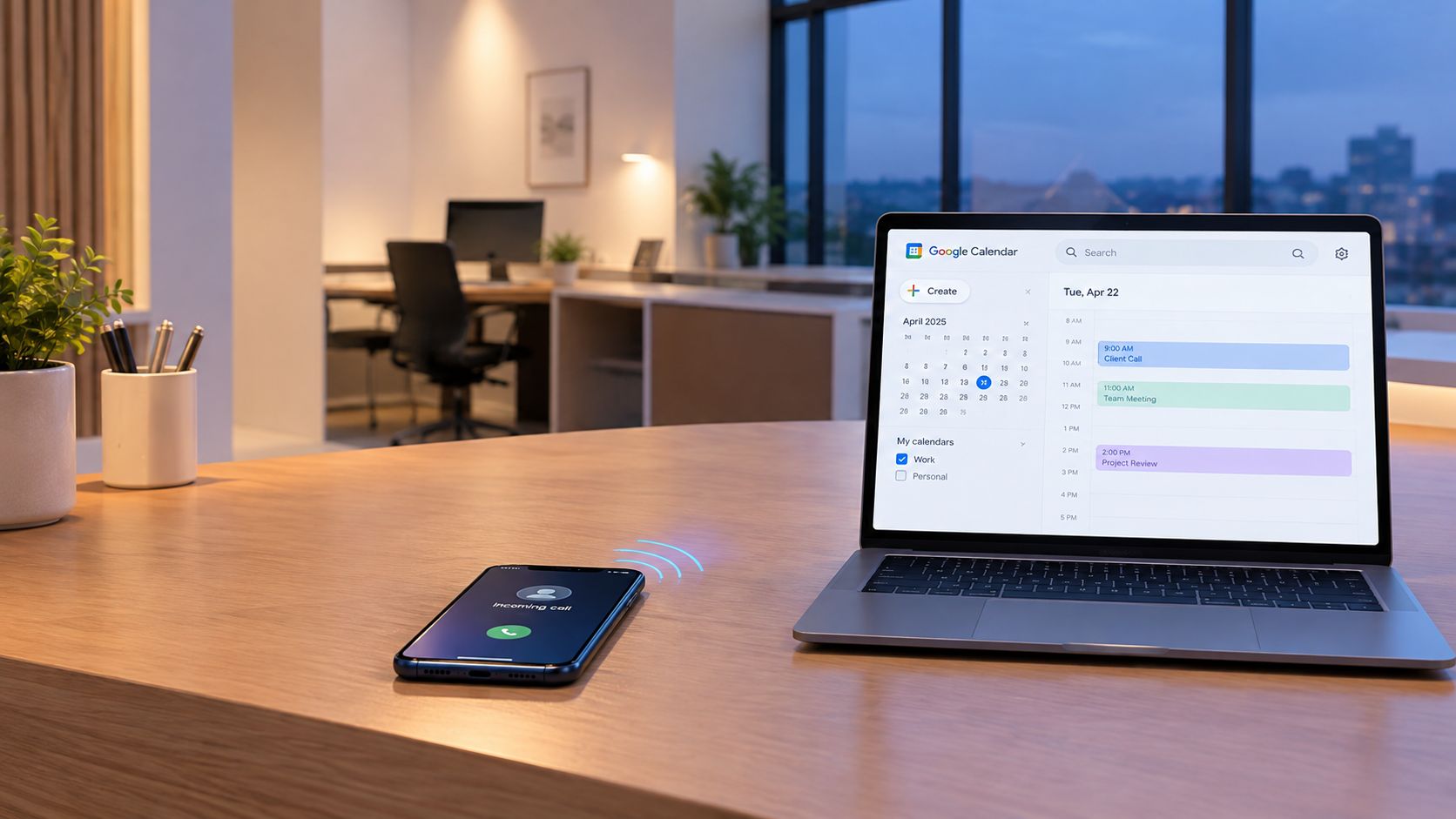
That workflow matters most when the front desk is busy and the call still needs an answer. Google Calendar remains the source of truth for availability, while the receptionist layer handles the back-and-forth first, then places the booking once the time is confirmed. For a practical example of that setup, see how AI phone receptionists handle business calls.
For local appointment businesses, the value is operational. The call gets handled while staff are with another client, the booking lands right away, and the caller does not have to wait for a callback. Salons, clinics, law offices, and home-service companies feel that difference quickly, because missed calls often turn into missed revenue opportunities.
Google Calendar still stays at the centre of the workflow. The receptionist layer just fills the gap between the caller and the calendar, which is closer to how office staff work than a static booking link in an email signature. Heyline is one example of that workflow, but the main point is the pattern itself, a call is answered, context is gathered, and the confirmed slot is written into the calendar without extra manual steps.
Troubleshooting Common Booking and Conflict Issues
Missing slots usually mean one of two things. Either the calendar is busy, or the availability rules are tighter than they look. Google hides times that overlap with existing events, so a lunch break, internal meeting, or blocked-off admin hour will remove that slot from the booking page.
Check the obvious failures first
If clients say they can't see a time you expected to be open, verify the event conflict before you touch anything else. Then check the schedule's time zone and lead-time settings, especially if the issue appears around daylight-saving transitions. A calendar can look right in the editor and still be wrong in the live booking view if one of those settings drifted.
If bookings are landing on the calendar but notifications aren't behaving the way staff expect, review sharing permissions and reminder settings. People often blame the booking page when the problem is in the calendar access layer. That distinction matters because the fix is different.
- Conflicting event present: the slot should disappear, and if it doesn't, the schedule probably isn't reading the right calendar.
- Wrong time zone selected: bookings can land at the intended length but still confuse staff on the day of the appointment.
- Reminder behaviour off: check who can see the event and which notifications are active before rebuilding the schedule.
For a deeper operational comparison, this is also where a phone-first workflow can help, and the note on calls going straight to voicemail is worth keeping in mind if missed calls are part of the problem.
The goal isn't just to make a page that looks live. It's to make sure the calendar behaves the same way clients expect it to behave.
Next Steps for Optimizing Your Appointment Workflow
A solid Google Calendar setup starts with one honest audit. Check appointment length, time zone, lead time, and availability windows on every schedule you use. If even one setting is off, clients and staff start treating the booking flow as unreliable.
Decide where Google is enough
If one person owns the appointments and the booking types are simple, Google Calendar appointment schedules can still handle the job cleanly. If you run several providers, or callers need to be routed by service type, the calendar may need a receptionist layer or a more specialised scheduling workflow. Multi-provider routing is the gap most guides skip, and it is usually where a single booking page stops being enough.
Then document your privacy and retention rules. If your booking process touches personal information, your intake and storage habits need to match California expectations, not just convenience. The easiest systems to maintain are the ones where front-desk staff know exactly what gets collected, what gets stored, and what gets shared.
For a local practice, I would review one live schedule, test one booking path, and fix one routing gap before adding another service. That keeps the calendar from turning into a tangle of half-working pages.